| |
Setting up AIM 4.0 to handle chat links |
|
|
If you click a room name in the Community Chats window and AIM tells
you to "check your Internet Config setup," it means AIM hasn't been
registered as the helper for the aim: URL scheme on your Mac.
This is a one-time setup. After this, every chat-room link in the
Community Chats window will join the room directly.
Step 1. In AIM, go to the Edit menu and choose
Internet Options... (Or open the Internet control panel
directly from the Apple menu.) The Internet control panel opens on the
Personal tab.
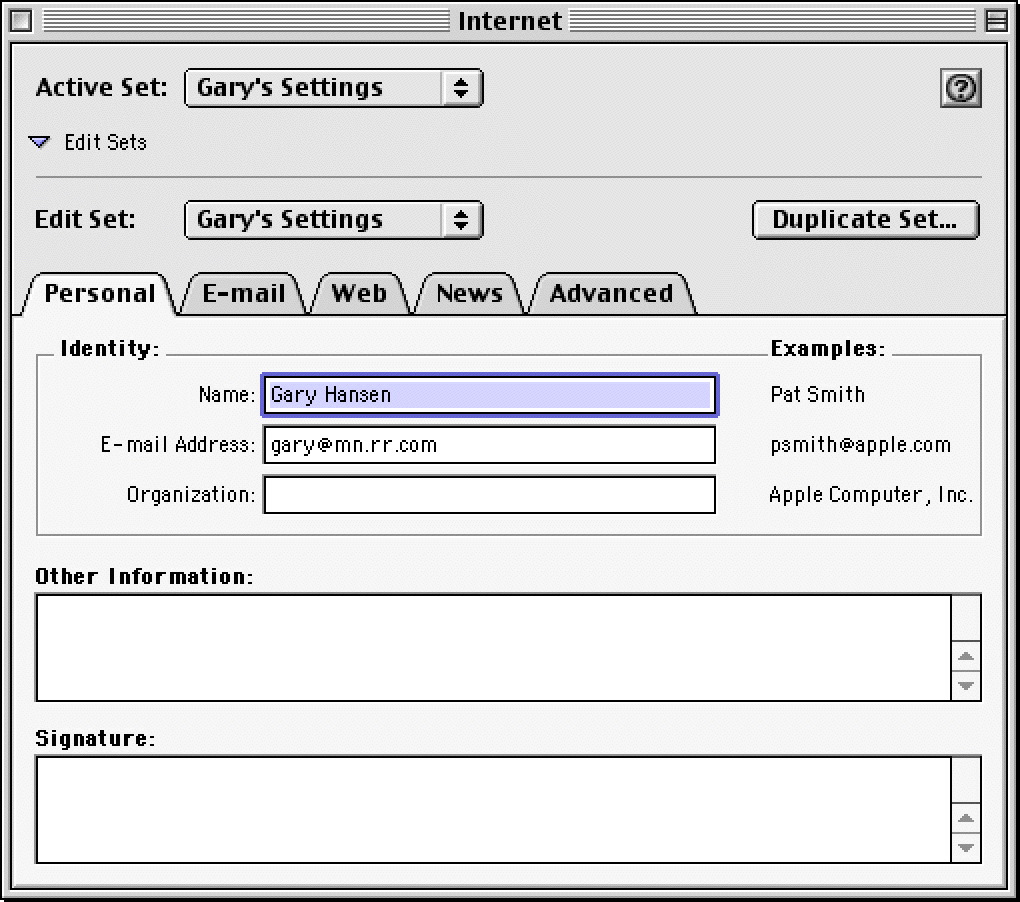
Step 2. Click the Advanced tab at the top right.
On the left side, click the Helper Apps icon. You'll see a long
list of URL types and which application handles each one.
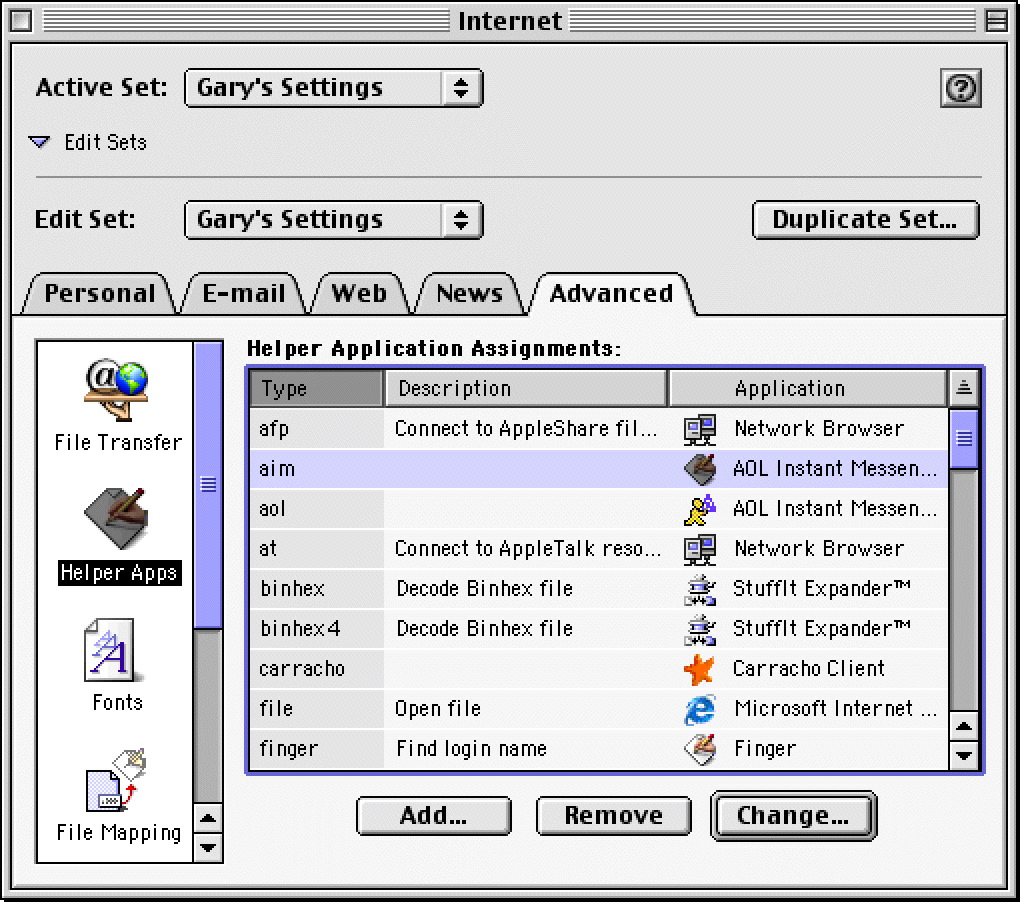
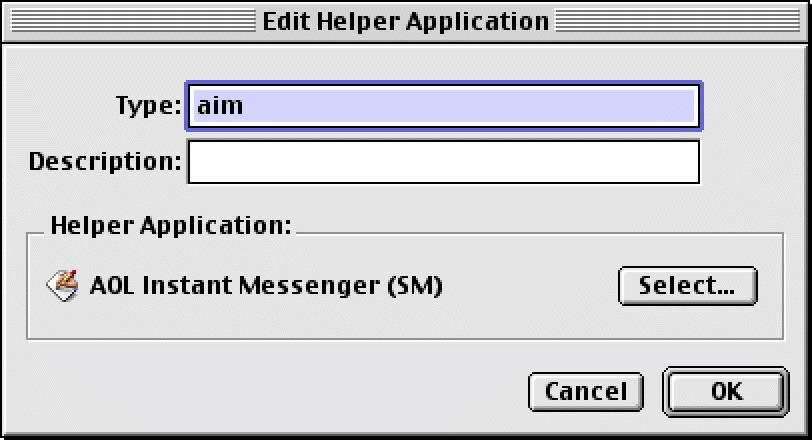
Step 3. Find the row for aim in the list and click
Change... at the bottom (or click Add... if there's no
aim row). The Edit Helper Application window opens.
Make sure Type: says aim, then click Select....
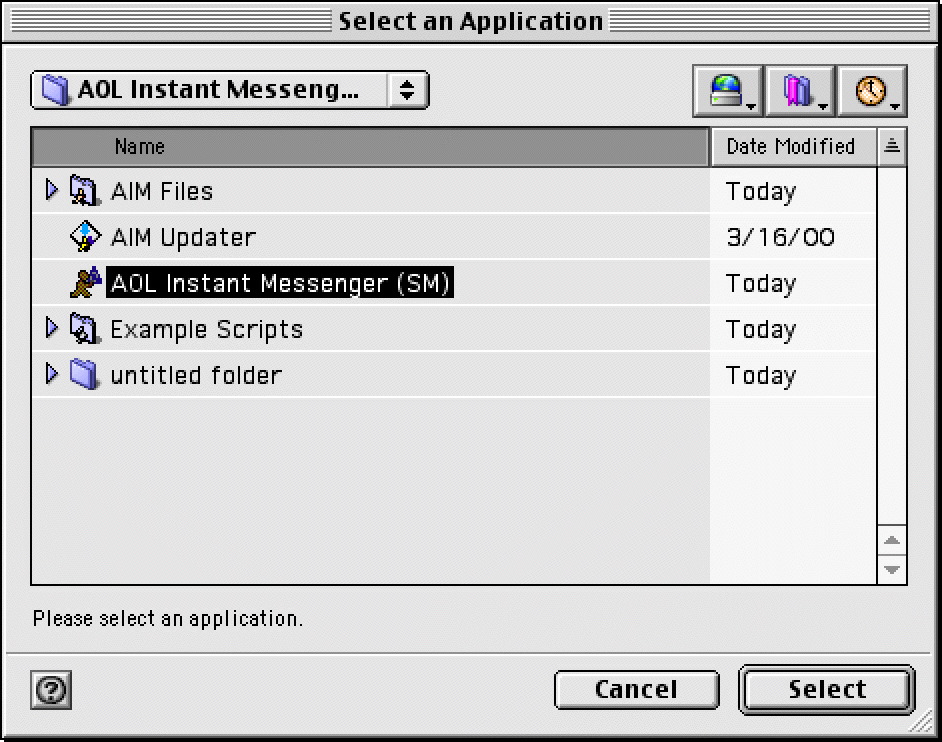
Step 4. Browse to wherever you installed AIM 4.0, highlight
AOL Instant Messenger (SM), and click Select.
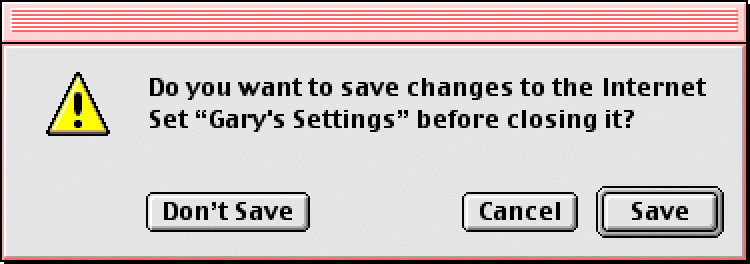
Step 5. Click OK to close the Edit Helper Application
window. Then close the Internet control panel. Mac OS will ask if you
want to save changes - click Save.
That's it. Open the Community Chats window in AIM and click any
room name - it should join the room directly without any error.
Back to chat.mactrove.com |
FAQ
|
|
|